
Have you ever updated a website, but your browser still shows the old version? Or maybe a page is loading strangely, an image will not update, or a button is not working the way it should.
Before assuming something is broken, there is one simple step that often fixes the issue: clearing your browser cache.
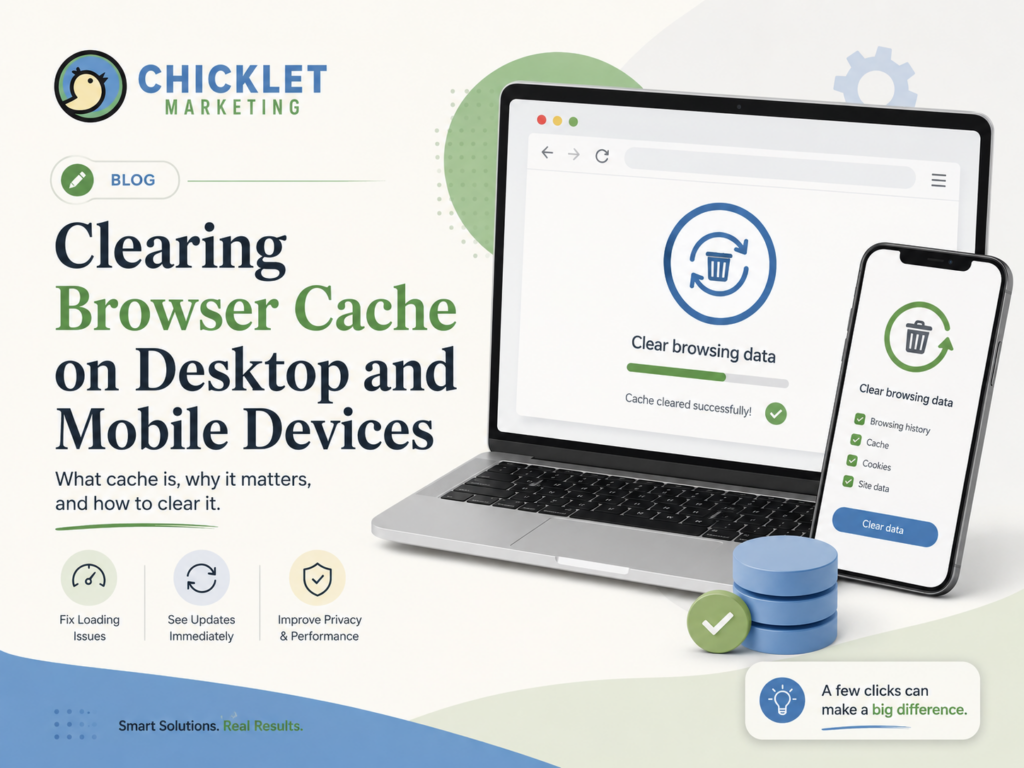
Clearing your cache is one of those basic website troubleshooting steps that can make a big difference. It helps your browser load the most current version of a website instead of showing saved, outdated files from a previous visit.
Whether you are reviewing website changes, checking a new page, or troubleshooting a display issue, understanding cache can save time, confusion, and unnecessary back-and-forth.
What Is Browser Cache?
Browser cache is temporary storage your web browser uses to help websites load faster.
When you visit a website, your browser saves certain pieces of that site on your device. This may include images, logos, styling files, scripts, and other page elements. The next time you visit that same website, your browser can load some of those saved files instead of downloading everything from scratch.
That is usually a good thing. It helps websites load more quickly and creates a smoother browsing experience.
However, cache can also cause confusion.
If a website has recently been updated, your browser may continue showing an older saved version instead of the newest version. That means you might not see recent content changes, design updates, new images, corrected text, or updated functionality right away.
This is why web designers, developers, and hosting teams often ask clients to clear their browser cache when reviewing website updates.
Why Clearing Cache Matters
Clearing your cache helps your browser start fresh.
It can be helpful when:
- A website is not showing recent updates
- Images or logos look outdated
- A page layout appears broken
- Buttons, menus, or forms are not loading correctly
- You are seeing an old version of a page
- A website feels slower than usual
- You are testing website edits or launch updates
- A developer or support team asks you to refresh your browser data
Clearing cache does not usually mean something is wrong with the website. In many cases, the website has updated correctly, but your browser is still holding onto old files.
Think of it like your browser trying to be helpful by remembering things, but occasionally remembering too much.
Cache vs. Cookies: What Is the Difference?
Cache and cookies are often mentioned together, but they are not the same thing.
Cache stores website files such as images, layout styles, and scripts so pages can load faster.
Cookies store small pieces of information from websites, such as login sessions, preferences, shopping cart details, or tracking information.
When clearing browser data, you may see options for both cached files and cookies. If your goal is simply to see updated website changes, you usually only need to clear cached images and files.
If you clear cookies, you may be logged out of websites or lose saved preferences. That is not necessarily a problem, but it is something to be aware of before selecting every option.
Before You Clear Everything
Before clearing your full browser history, try these quick steps first:
- Refresh the page.
Click the refresh icon in your browser. - Try a hard refresh on desktop.
On Windows, try pressingCtrl + F5.
On Mac, try pressingCommand + Shift + R. - Open the page in an incognito or private window.
This helps you see whether the issue is related to your browser cache. - Check another browser or device.
If the updated website appears correctly elsewhere, your original browser may simply be showing cached files.
If the issue continues, clearing cache is the next best step.
How to Clear Cache on Google Chrome – Desktop
Use these steps for Chrome on Windows or Mac:
- Open Google Chrome.
- Click the three-dot menu in the top-right corner.
- Select Settings.
- Click Privacy and security.
- Select Delete browsing data or Clear browsing data.
- Choose a time range. For website review issues, All time is often the safest option.
- Check Cached images and files.
- Leave passwords unchecked unless you specifically want to remove them.
- Click Delete data or Clear data.
- Close and reopen Chrome, then reload the website.
Tip: If you are reviewing website updates, you may also want to open the page in an incognito window after clearing cache.
How to Clear Cache on Safari – Mac
Safari handles cache a little differently than some other browsers. For many users, clearing history and website data is the simplest option.
- Open Safari.
- In the top menu, click Safari.
- Select Clear History.
- Choose the timeframe you want to clear.
- Click Clear History.
If you want to clear cached files more specifically, Safari may require enabling the Develop menu:
- Open Safari.
- Click Safari in the top menu.
- Select Settings or Preferences.
- Go to the Advanced tab.
- Check Show features for web developers or Show Develop menu in menu bar.
- In the top menu, click Develop.
- Select Empty Caches.
After clearing cache, reload the website.
How to Clear Cache on Microsoft Edge – Desktop
Use these steps for Microsoft Edge on Windows or Mac:
- Open Microsoft Edge.
- Click the three-dot menu in the top-right corner.
- Select Settings.
- Click Privacy, search, and services.
- Under Clear browsing data, click Choose what to clear.
- Choose a time range.
- Select Cached images and files.
- Leave other items unchecked unless you want to clear them too.
- Click Clear now.
- Restart Edge and reload the website.
How to Clear Cache on Firefox – Desktop
Use these steps for Firefox on Windows or Mac:
- Open Firefox.
- Click the menu button in the top-right corner.
- Select Settings.
- Click Privacy & Security.
- Scroll to Cookies and Site Data.
- Click Clear Data.
- Select Cached Web Content.
- If you do not want to be logged out of websites, be cautious about selecting cookies.
- Click Clear.
- Restart Firefox and reload the website.
How to Clear Cache on Safari – iPhone or iPad
For Safari on iPhone or iPad:
- Open the Settings app.
- Tap Apps.
- Tap Safari.
- Scroll down and tap Clear History and Website Data.
- Choose the timeframe you want to clear.
- Tap Clear History to confirm.
If you want to clear website data while keeping history:
- Open Settings.
- Tap Apps.
- Tap Safari.
- Tap Advanced.
- Tap Website Data.
- Tap Remove All Website Data.
- Confirm by tapping Remove Now.
After clearing, reopen Safari and visit the website again.
How to Clear Cache on Chrome – Android
For Chrome on Android:
- Open the Chrome app.
- Tap the three-dot menu near the address bar.
- Tap Delete browsing data.
- Choose a time range.
- Tap More options if needed.
- Select Cached images and files.
- Tap Delete data.
If you are signed into Chrome and syncing across devices, remember that some browsing data settings may affect synced devices depending on what you choose to delete.
How to Clear Cache on Chrome – iPhone or iPad
For Chrome on iPhone or iPad:
- Open the Chrome app.
- Tap the three-dot menu.
- Tap Delete browsing data or Clear browsing data.
- Select a time range.
- Choose Cached images and files.
- Tap Delete browsing data.
- Confirm your selection.
After clearing, reload the website.
How to Clear Cache on Mobile Edge or Firefox
If you use Microsoft Edge or Firefox on your phone, the process is similar:
- Open the browser app.
- Tap the menu icon.
- Go to Settings.
- Look for Privacy, Privacy and security, or Browsing data.
- Choose the option to clear browsing data.
- Select cached files or cached images and files.
- Confirm and reload the website.
The exact wording may vary slightly depending on your device and app version, but the cache-clearing option is usually found under privacy or browsing data settings.
When Should You Clear Cache?
You do not need to clear your cache every day. In fact, cache is helpful most of the time.
However, it is a good idea to clear cache when:
- You are reviewing website updates
- A page does not look right
- A website is showing outdated content
- A form, menu, or button is not working correctly
- You recently updated your website
- A web support team asks you to test again after changes are made
For clients reviewing website edits, clearing cache can help make sure you are seeing the most recent version of the site.
A Quick Note for Website Clients
If Chicklet Marketing recently completed updates on your website and something still looks unchanged on your end, your browser may simply be showing an older saved version.
Before reaching out with a concern, try:
- Refreshing the page
- Opening the page in a private or incognito window
- Checking from another device
- Clearing your browser cache
If the issue still appears after those steps, send us a screenshot along with the browser and device you are using. That helps us troubleshoot more quickly.
Final Thoughts
Browser cache is meant to make your online experience faster, but it can sometimes get in the way when websites are updated.
Clearing cache is a simple, practical step that can help you see the newest version of a website and resolve common display issues. It is especially helpful when reviewing website changes, testing new pages, or troubleshooting something that does not look quite right.
At Chicklet Marketing, we want website updates and reviews to be as smooth as possible. If we ever ask you to clear your cache, it is not because you did anything wrong. It is simply one of the easiest ways to make sure your browser is showing the latest version of your website.
A fresh view can make all the difference.
Do you have questions on how to best reach your target audience? Do you have a marketing budget but aren’t sure how to allocate those funds for an optimal ROI? Are you in need of an updated website? If you have any questions or need assistance with your marketing efforts, we want to hear from you! Schedule your FREE Consultation to find out how we may be able to help take your business to the next level.
“The secret to getting ahead is getting started.” – Mark Twain